Portal login problems are frustrating because they can block a student even before the application itself is considered. A forgotten password, a captcha that will not accept, or a message saying that an account already exists can all look like serious faults, but most of them have a simple and safe solution. This guide explains how to solve common login problems for the Honhaar Scholarship Phase 4 portal, step by step, without creating duplicate accounts and without sharing personal details with unofficial helpers.
The central rule of this guide is simple. If you already have an account, sign in to that account. Do not create another one. A second account can split your record, confuse verification and delay your application. The sections below cover the Honhaar Scholarship Phase 4 account-already-exists message, the correct identity number login format, password and captcha problems, the difference between saving and submitting a form, and how to check your application status safely through the portal, email and your institution.
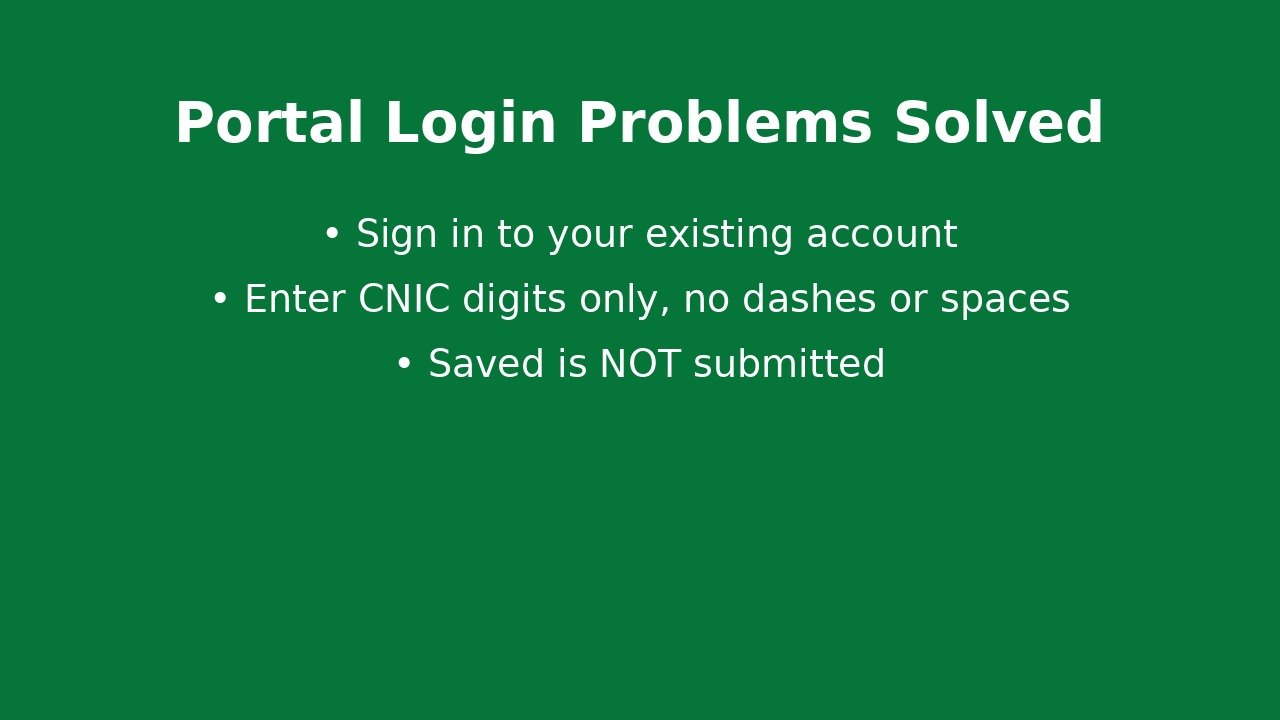
Account Already Exists: Sign In, Do Not Create Another
Honhaar Scholarship Phase 4 applicants often see an account-already-exists message when they try to register again, especially if they applied in an earlier phase, started a form before, or registered and then forgot about it. This message is not an error in itself. It means that the system already holds a record linked to your details, and the correct action is to sign in to that existing account.
What to do: Go to the sign-in option on the official portal and sign in with your existing credentials. What not to do: Register again with slightly different details in order to get past the message. A second account does not solve the problem, because verification will still find the original record, and the duplicate can then cause a mismatch or a delay.
If you are certain that you have an account but cannot recall which details you used, check your email inbox first, including the spam or junk folder, for an earlier registration message from the portal. That message may confirm that an account was created and remind you of the account details you used. If you still cannot sign in, contact your institution focal person for guidance, rather than creating a fresh account or asking an unofficial agent to create one for you.
Correct Login Format: Identity Number Without Dashes or Spaces
Honhaar Scholarship Phase 4 portal login requires care with format. The identity number used for login should be entered without dashes and without spaces, as one continuous set of digits. This is one of the most common causes of a login failure, because many students naturally type the number exactly as it appears on a printed card, with dashes between groups of digits.
Correct format: Digits only, with no dashes and no spaces. Common mistake: Adding dashes, spaces or other characters between digits. Common mistake: Typing a letter that looks like a digit, or a digit that looks like a letter, when entering the number quickly. Enter the number slowly, check it digit by digit before submitting, and make sure that no extra space has been added at the start or the end.
Students should also check that the keyboard or device is not adding automatic spaces or changing characters. On a mobile phone, for example, auto-correction or an extra space after pasting a number can cause a login to fail even when the number itself is correct. Typing the number manually, and checking it before pressing sign in, avoids this problem in most cases.
Never share your identity number, password or documents with an unofficial agent who offers to log in for you. Your login details are personal, and handing them to a stranger creates a risk that cannot be undone by changing a password later, because documents and personal details, once shared, cannot be taken back.
Password Problems and How to Handle Them Safely
Honhaar Scholarship Phase 4 password problems usually fall into three groups. The first is a forgotten password. The second is a password that is typed correctly but rejected because of a small typing error, such as capital letters being on or off. The third is a password that has been changed or reset, but the student is still trying an older version.
Forgotten password: Use only the portal’s own password recovery option, if one is shown on the sign-in page, and follow its instructions exactly. Do not use a recovery link sent by an unofficial page, a social media account or a stranger, and do not pay anyone to reset a password for you. If no recovery option is visible, or if recovery does not work, contact your institution focal person for official guidance.
Typing errors: Check that capital letters are set correctly, that no extra space has been added, and that the password is being typed in the correct field. Passwords are case-sensitive, so a single capital letter in the wrong place will cause a rejection. If you use a saved password on a device, check that the saved entry belongs to this portal and not to a different website.
Repeated failures: Do not keep trying many different passwords in quick succession. Repeated failed attempts can lock an account or trigger a security block, which will delay access further. Pause, check the details you are entering, use the official recovery route if needed, and seek help from the focal person if the problem continues. Keeping a personal, private note of the correct password in a safe place, away from shared devices, can prevent the same problem from happening again.
Captcha Problems: Slow Down and Read Carefully
Honhaar Scholarship Phase 4 captcha checks are there to confirm that a real person is signing in, but they can be difficult when the characters are unclear, when the page is refreshed too quickly, or when a slow connection causes the check to expire. A captcha failure does not mean that your account is blocked, and it does not mean that your identity number or password is wrong.
What to do: Read the captcha slowly, enter it exactly as shown, and pay attention to similar-looking characters. If the captcha is unclear, use the refresh option on the portal to load a new one, and try again once, carefully. What not to do: Keep refreshing and submitting rapidly, because the captcha may expire or the page may need to reload fully before the next attempt works.
Other practical steps can help. Make sure the page has fully loaded before entering the captcha, avoid using a very slow or unstable connection for the sign-in step, and try a different browser or device only if the problem persists on the first one. If the captcha still fails after careful attempts, note the exact message shown, take a screenshot for your own record if it does not show your password, and ask the institution focal person for guidance. Do not share a screenshot that shows your password or personal documents with anyone outside the official process.
Saved Is Not Submitted: A Critical Difference
Honhaar Scholarship Phase 4 applicants sometimes believe that their application is complete because they saved the form. Saving is not submission. A saved form is a draft. It holds the information you entered so that you can return to it later, but it has not been sent for checking, and it will not be considered as an application until it is actually submitted through the portal’s submit step.
Saved form: Information is stored as a draft, and can still be edited. Submitted form: Information has been sent for verification, and the portal should show a submitted status or confirmation. Students should therefore always look for a clear submission confirmation after completing the form, and should not close the page until that confirmation has appeared.
Checklist before submitting: Read every section once more. Checklist item: Confirm that all required documents are uploaded and readable. Checklist item: Confirm that names, figures and programme details match the official records. Checklist item: Confirm that the form has been submitted, not only saved, and keep a note of the submitted status or confirmation shown by the portal.
If you return to the portal later and find a form marked as saved but not submitted, complete any missing sections, review the whole form again, and submit it properly. Do not assume that a saved form from an earlier session was automatically submitted, and do not create a new account to submit a second copy. One account, one complete and submitted application, is the correct approach.
Checking Your Application Status Safely
Honhaar Scholarship Phase 4 status checking should be done through official channels only. The first place to check is the portal itself, by signing in to your existing account and looking for the application status shown there. The status wording on the portal is the most direct record of where your application stands, and it should be checked before relying on any other source.
Portal check: Sign in and read the status for your submitted application. Email check: Check the email address linked to your account for messages about your application, and check the spam or junk folder as well, because official messages are sometimes filtered there by mistake. Institution check: If the portal status is unclear, or if an email message raises a question, ask your institution focal person, who can explain the status and the next step.
Students should be cautious about status messages that arrive from unofficial numbers, pages or groups. A message claiming that an application has been approved, rejected or selected, when it does not come from the portal, an official email or the institution, should not be treated as reliable. Where a status or result date has not been announced through official channels, this guide does not invent one, and students should not act on rumoured dates from unofficial sources.
Keeping a simple personal record also helps. Note the date you submitted, the status shown at each check, and any message received, with the date of that message. This record makes it much easier to explain the position clearly to the focal person if help is needed later.
Staying Safe: Never Share Login Details or Documents
Honhaar Scholarship Phase 4 security depends on students keeping their own details private. No official process requires a student to share a password, identity document or full application with an unofficial agent, a shop, a social media page or a stranger who offers to check a status or fix a login problem for a fee. Anyone asking for these details outside the official portal and the institution should be treated with caution.
Never share: Your portal password. Never share: Your identity number or a copy of your identity document with unofficial helpers. Never share: Your income affidavit, result cards or other personal documents with unofficial pages or groups. Sharing these items can lead to misuse, duplicate applications or identity problems that are difficult to reverse.
If someone has already been given access by mistake, change the password through the official portal as soon as possible, check the application status for any unexpected change, and inform the institution focal person. Acting quickly limits the damage, and the focal person can advise on any further step that may be needed.
Login Problems and Solutions at a Glance
| Login problem | Likely cause | Safe solution |
|---|---|---|
| Account already exists | An earlier registration already holds your record | Sign in to the existing account; do not create another |
| Identity number rejected | Dashes, spaces or a typing error in the number | Enter digits only, without dashes or spaces, and check digit by digit |
| Password rejected | Forgotten password or capital-letter error | Use the portal’s own recovery option or ask the focal person |
| Captcha fails | Unclear characters or a page that has not fully loaded | Refresh once, enter carefully, and let the page fully load |
| Form not counted as applied | Form was saved but never submitted | Complete the form and submit it, then keep the confirmation |
| Official portal | Use only the official portal for sign-in and status | Official portal |

Also Read:
Honhaar Scholarship Phase 4 2026: Eligible Universities and 70 Disciplines List
Honhaar Scholarship Phase 4 2026: Income Affidavit Guide
Honhaar Scholarship Phase 4 2026: Continuing Students Guide (2nd Semester Onward)
Honhaar Scholarship Phase 4 2026: Documents, Application Status and Correction Guide
Conclusion
Most Honhaar Scholarship Phase 4 portal login problems can be solved by returning to the basics: sign in to the account that already exists, enter the identity number without dashes or spaces, check the password carefully, read the captcha slowly, and make sure that a saved form is actually submitted. Checking status through the portal, through email including the spam folder, and through the institution focal person gives a reliable picture, while unofficial messages should not be trusted. Above all, login details and personal documents should never be shared with unofficial agents. A careful, patient approach protects both the application and the student’s personal information.
Frequently Asked Questions
What should I do if the portal says my account already exists?
Sign in to your existing account. Do not create another account, as a duplicate can delay verification.
How should I enter my identity number for login?
Enter it as digits only, without dashes and without spaces, and check it digit by digit before signing in.
What if I forget my portal password?
Use only the portal’s own recovery option if shown, or contact your institution focal person for official guidance.
Why does my saved form not count as an application?
Saving stores a draft only. An application counts only after you complete the submit step and receive a submission confirmation.
Where should I check my application status?
Check the portal first, then the email linked to your account including the spam folder, and ask your institution focal person if the status is unclear.
Should I share my login details with someone who offers to help?
No. Never share your password, identity number or documents with unofficial agents, pages or strangers.

Shahzad Sahil is the editor of 10thclassresultcheck.pk, covering 10th class results for BISE boards across Pakistan, with information verified from official board sources for students.
Latest Articles